Errors When Working with Documents
Information from the order is not pulled into the document
Section titled “Information from the order is not pulled into the document”Solution:
- Go to Settings → Documents.
- Select the desired document template.
- Check for blue variables in the template.
- If the variables are missing – add them:
- place the cursor where the variable should be in the document
- add the required variable from the block on the right
- If the variables are present in the document – update them:
- delete the old variable and insert a new one.
The document is not displayed in the print list
Section titled “The document is not displayed in the print list”Solution:
-
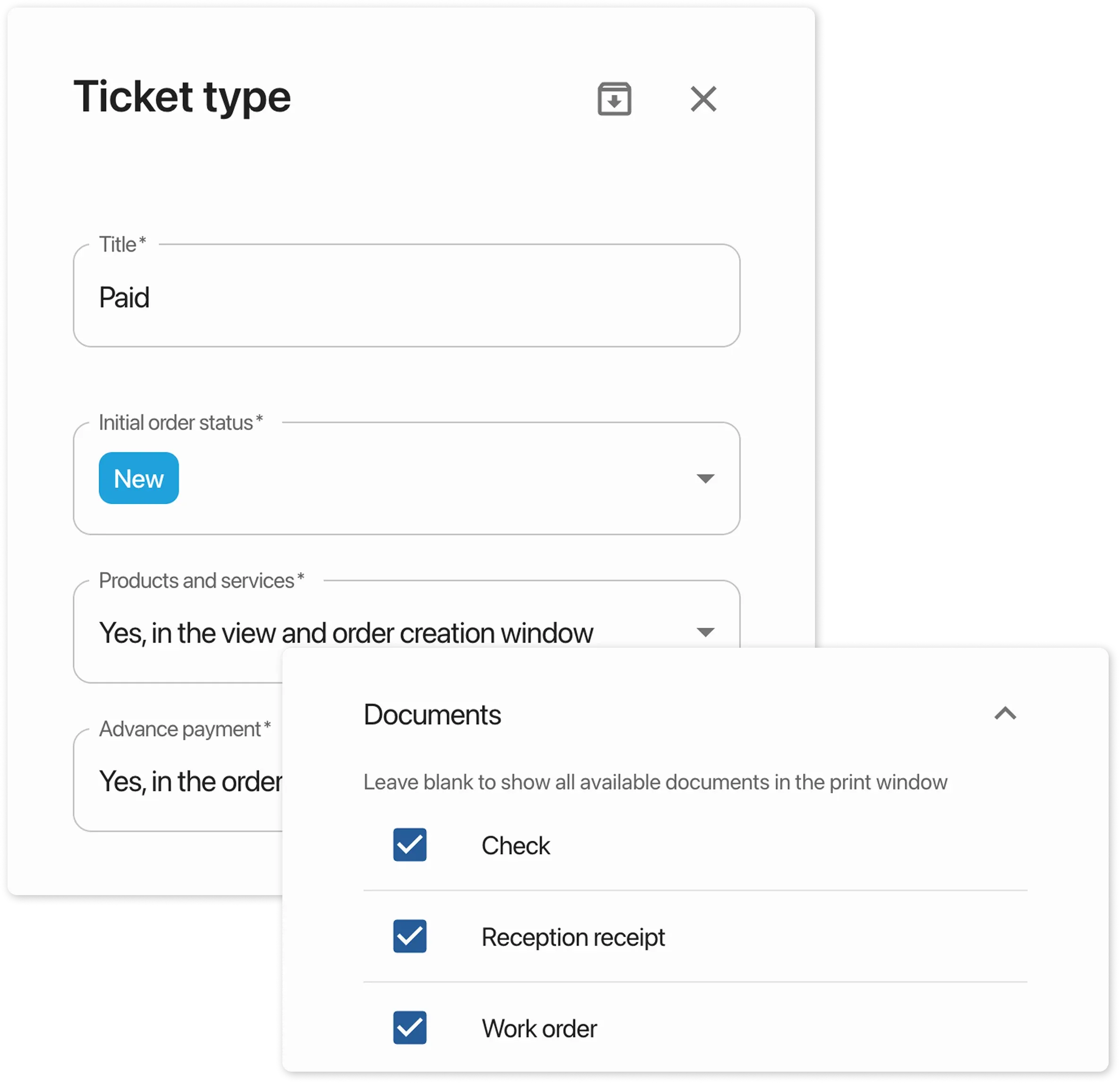
Go to Settings → Order Types.
-
Link the document to the required order type.
Each order type can have its own set of documents.
QR code is printed too large
Section titled “QR code is printed too large”Solution:
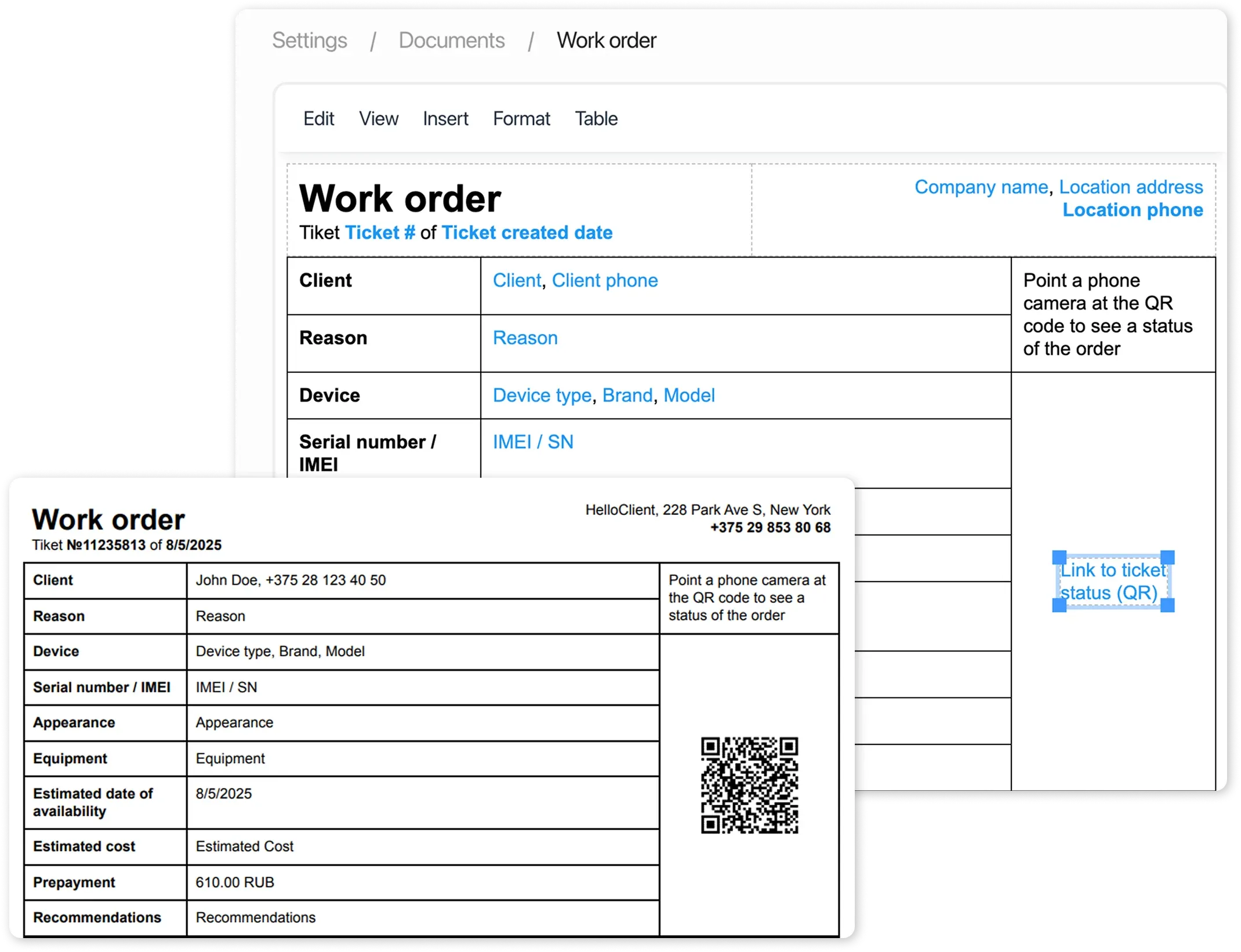
- Place the QR code variable inside a table cell
- Adjust the cell size as needed
- Cell width determines the size of the QR code
How to remove the date and HelloClient label from the document?
Section titled “How to remove the date and HelloClient label from the document?”For Google Chrome:
- In the print preview window:
- Click “More settings”
- In the “Options” section:
- Uncheck “Headers and footers”
- Print the document
Note: These are browser system elements, not part of HelloClient
Text overlaps in the document
Section titled “Text overlaps in the document”Fix this in one of the following ways:
- Increase column width / row height
- Decrease font size
- Shorten the text or remove extra words
- Split long text into multiple cells
The order includes a prepayment, but it is not displayed in the document
Section titled “The order includes a prepayment, but it is not displayed in the document”Solution:
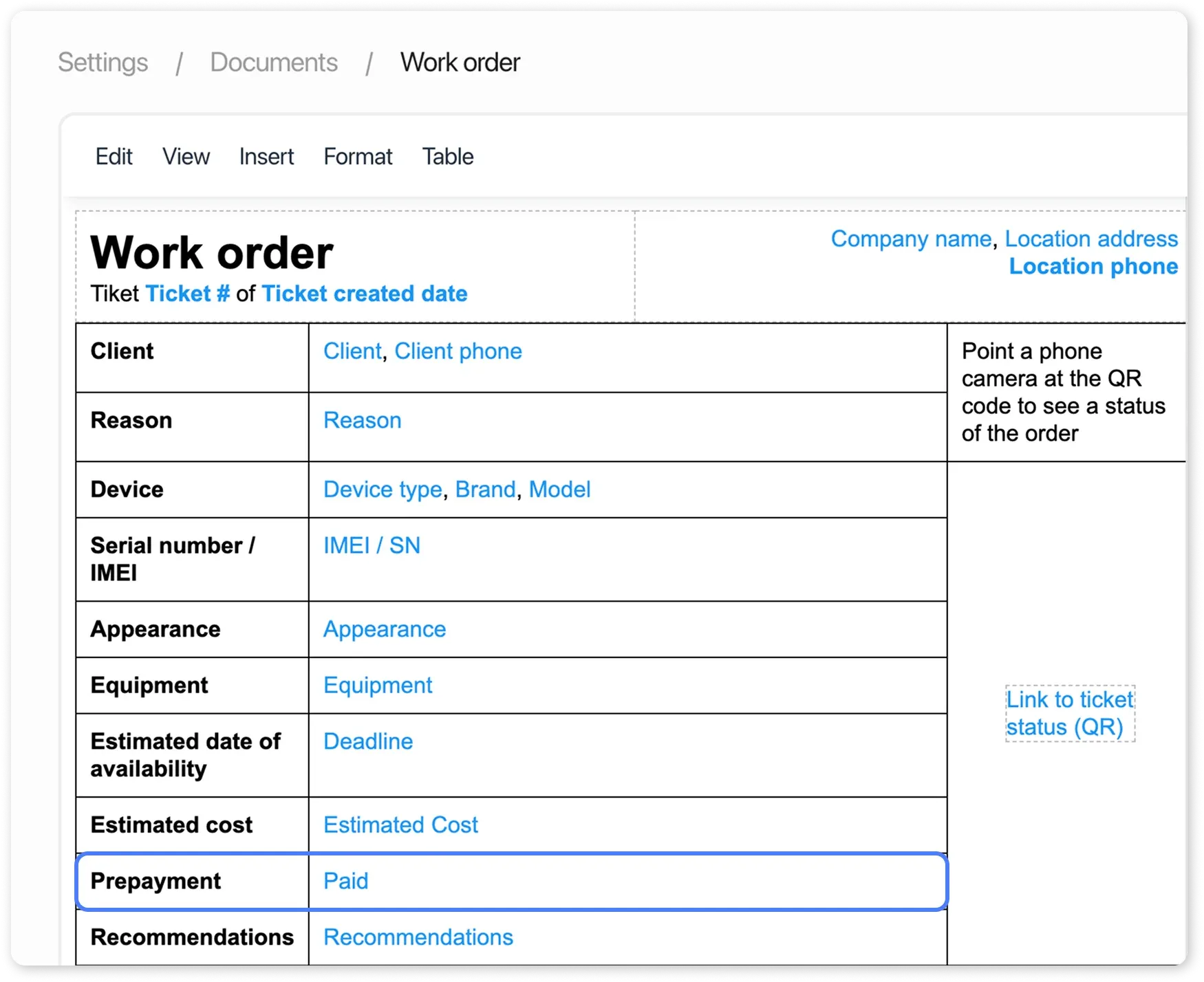
- Go to Documents → Desired Template
- Insert the variable “Paid” into the template